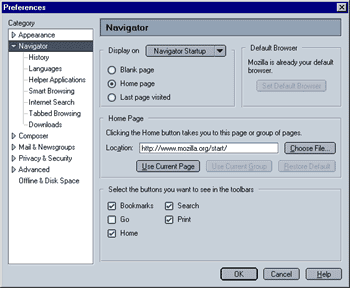
This is what you will see when you click on the category heading "Navigator". You can select the following:
- Display on
This option lets you select, which page Mozilla displays when you
- First start Mozilla ("Navigator Startup")
- Open a new browser window ("New Window")
- Open a new browser tab ("New Tab")
Mozilla allows you to select a different behavior for each of those three option (available from the dropdown menu), giving you a great degree of flexibility.
You can chose between:
- Blank page: This means that Mozilla will display no page at all. The advantage is, that it will take less time for Mozilla to start (or to open a new window/Tab).
- Home page: This option will make Mozilla load the page (or file) you specified in the Home Page field. Please see below for more information.
- Last page visited: When this option is selected, Mozilla will open the last page you viewed. When you selected this for "Navigator Startup", it means that the last site you visited on your previous session will be opened. When you select this for "New Window" or "New Tab", Mozilla will effectively duplicate the current window (like IE does).
This may or may not be a good thing, depending on how many other people use your computer (and on the last page you visited ;-)
- Home Page
This option lets you select the page or file Mozilla opens if you click on the "Home" button. It will also affect the option "When Navigator starts up, display Home page" since this is where you specify your home page.
You can specify:
- a manually entered a URL to a website, to an HTML document on your PC or on a local network (simply type something like "http://www.mozilla.org")
- that Mozilla uses the page that is displayed in the active window (i.e. the one you can see at the moment you select this option)by clicking on "Use current page"
- that Mozilla uses the current group of open tabs by clicking on the "Use current group
or chose a file by clicking on "Choose File"
Clicking on "Restore default" will do just that, i.e. restore this setting to what it was when you fist started Mozilla.
- Select the buttons you want to see in the toolbars
Take a look at the top part of Mozilla. Notice all the buttons that are displayed? This option lets you select which buttons will or will not be displayed. Note: "Home" is the button that will take you to the Home page you specified. Also note that enabling/disabling toolbar buttons will not affect the entries in the menu bar.
|
 Navigator - Step 2