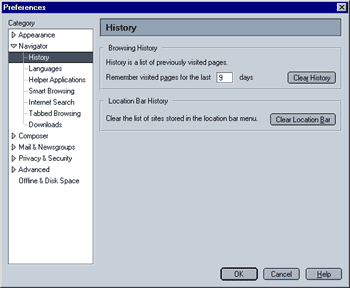
This next screen lets you specify the browser history settings. As the name implies, this affects how Mozilla "remembers" pages you visited in the past.
- Browsing History
The history file contains an overview of all the sites an their pages you have visited in the past. You can access it by either simultaneously pressing the CTRL + H keys or through the side bar.
This option lets you select, how many day back history will remember the sites you visited. In this screenshot, the value is set to 9 days. If you want to clear your browsing history (especially when other people can access your computer / Mozilla profile), simply press the "Clear History" button.
- Location Bar History
The location bar history is a more short-term (and easier to access) version of the browsing history. It shows the most recently visited websites. In addition, when you type a web address in the location bar and have the auto-complete feature enabled, the location bar will show the available auto-complete alternatives (e.g., when you type "www.a", the location bar history will show all the websites whose URL begins with an A). You can access it by clicking on the downward-pointing arrow in the right corner of your location bar (the location bar shows a website's URL, i.e. www.mozilla.org). Click on the "Clear Location Bar" button to clear the location bar history.
|
 Navigator - Step 3