 Advanced - Step 5
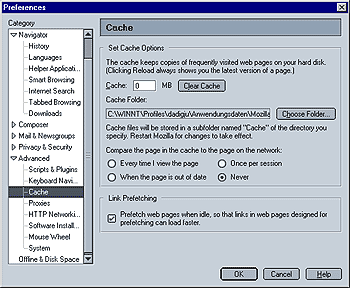
Set Cache Options
The field "Cache" allows you to specify the amount of harddrive space that will be used for caching. This is not used on a per-session basis, i.e. files cached will remain on your harddrive even after you close Mozilla.
The field "Cache Folder" allows you to specify where cached files will be saved. If you have several harddrives, moving the cache to a drive other than c:\ will help avoid fragmentation of your system harddrive and may speed Mozilla up.
Compare the page in the cache to the page on the network
Caching can involve a trade off between browsing speed and accuracy of the displayed web page. Depending on your setting for this option, browsing may be speeded up but the downside may be that the browser may not display the most current page but rather a cached (locally saved) version of it.
- Every time I view the page: Selecting this option, the browser will compare the cached page to the actual page whenever it is loaded. The pages that are displayed in the browser window will always be current, but they will take longer to display (even if you use the browser's Back button.
- When the page is out of date: When this option is selected, the browser will compare a web page's publication date (i.e. when it was published / last changed) to the date of the page in the cache. This option offers a pretty good compromise between speed and accuracy. However, if this information is missing/inaccurate, the results could either be that the most current page is not displayed, or that displaying the page takes longer.
- Once per session: Chose this option if you are the casual browser, i.e. check your favorite sites and the close the browser. When this option is enabled, Mozilla will only compare the cached page to the actual page the first time it is loaded during a session (i.e. not again, until the browser is closed).
- Never: Mozilla will never compare the cached page to the actual page (unless the page itself specifies that it is not loaded from cache). I do not recommend using this option.
Link Prefetching:
When enabled, Mozilla will preload web pages or images while your browser is idle (i.e. it is not currently loading something else). This is not done automatically but specified by the web page itself. For example, this site uses prefetching: While you read this, the next step of the HOW-TO is already being loaded into Mozilla's cache, so when you click on "next", the page's content should be there quicker than without prefetching. In my opinion, this is a useful feature.
 |
Back |
|
Next |

|