 Appearance - Step 3
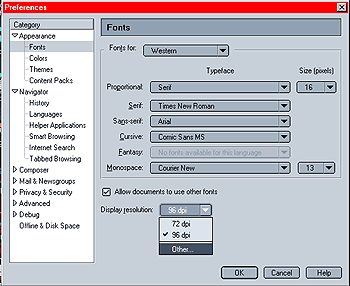
Leave the box next to "Allow documents to use other fonts" checked - this will allow Mozilla to diplay custom font settings many sites use (like e.g. this one).
The option "display resolution" lets you customize Mozilla's resolution to better match your display. Click on this field and select "Other...". A popup window will appear. Use a ruler or tape measure to measure the length of the line that appears and enter its length as it appears on your display (in centimeters or inches) - this will let Mozilla know, how text is actually displayed on your screen and allow it to adjust the text's size accordingly. In my case (average 17 in. screen), the resolution was changed from 96 dpi to 85 dpi.
 |
Back |
|
Next |

|